Saturday, October 1, 2011

iPhone 4S Siri, but what about Google Voice Commands for Android?


Today marks the announcement of iPhone 4S, not iPhone 5 as everyone was expecting. Sure there were a lot of sources that said iPhone 4S is a 90% possibility, but as a consumer we didn't want to accept that fact. We all hoped for something bigger, and more than just 1 single button on the screen to click on. But what did we get in return?


Sure many of consumers were disappointed as they were expecting more than just a few features that it brings to the table. For example, the 8MP-camera-with-a-new-lens added for better resolution.


The iCloud is a new functionality, which had already existed, but now it is all exclusive on the new iPhone 4S. But most of this was all predicted.


One thing that was stressed heavily on iPhone 4S is Siri. Your wish is its command.
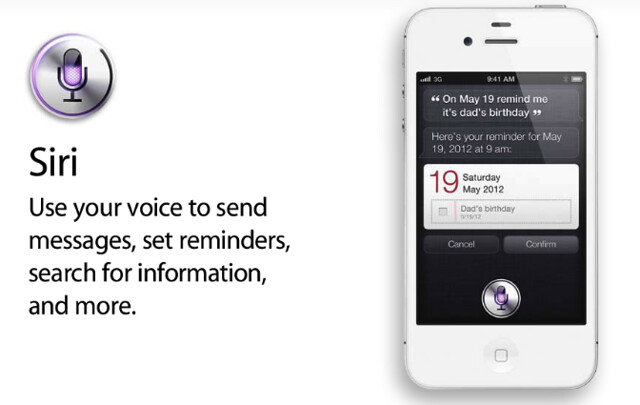
It is known to read and understand your commands without using your keyboard or touch screen. It is the most advanced system, which has put iPhone 4S a few years ahead of its competitors. Because of this, now you never really have to touch your screen to take care of daily tasks, except when you really want to interact with your phone off course for browsing, games, and such.

This pretty much sums up what the whole iPhone 4S is about apart from the A5 chip processor.


...BUT, how much of this new technology "per se" would you be utilizing?
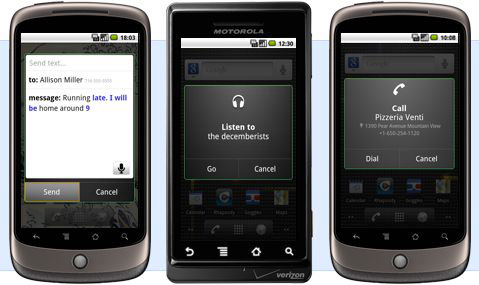


By now, everyone has heard of Google Voice Commands for Android phones.
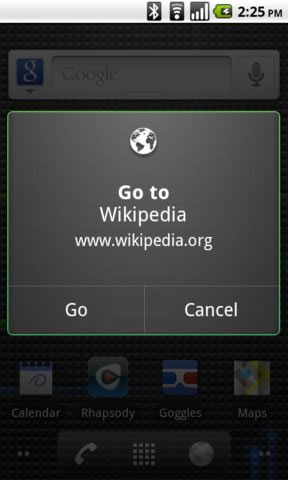


It was quite possibly the most advanced voice activated technology on smart phones for consumers to use while driving or who just want to be hands free.


Most of us who have used Android Smart Phones have utilized the Google Voice Commands to an extent. But even though there is so much more it has to offer, we as consumers never really used it to its full potential. Why is that? What is the reason for this? Simple, we like to have interaction with our phone. We find it simple to grab the phone and get to what we want with it without any extra work. The phones nowadays have fast processors inside of it, which leads us to navigate through the phone quicker. Hence, we never really used the Google Voice Commands as much.


So to sum it all up, yes the technology is impressive even though there is some disappointment about the hardware itself. However, an average consumer would never be able to find themselves at a a high comfort level using SIRI as they have other options available. 

Sunday, September 11, 2011

Specifications of S5PV210


     3.jpg
Android 2.3 supports the following features in addition to existing 2.2 features:

1.New user interface design with new themes (Black themes save power)
Extra Large Screen Size supported
2.SIP Communication Supported (SIP Video and Audio Calling, In an operator point of view, this is feature will decrease their voice calling
revenue where as user can call each other for lower rates or even free if they have good data connection)
3.Supports for NFC (High Frequency High Speech Data Transfer in short range) 
4.Support for WebM/VP8 video playback, and AAC audio encoding 
5.New audio effects such as reverb, equalization, headphone virtualization, and bass boost 
6.Improved Copy and Paste functionality 
7.Redesigned Multi Touch Software Keyboard 
8.Audio, graphical, and input enhancements for game developers 
9.New sensors support (i.e gyroscope) 
10.Download manager for long running HTTP downloads 
11.Enhanced support for native code 
12.Improved power management and application control 
13.Support for multiple cameras

1.Basic Parameters
Model
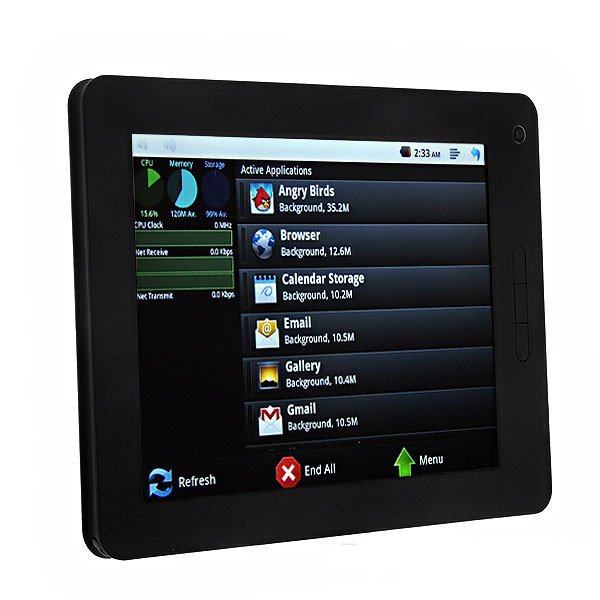
8 inch SannSung S5PV210 Android 2.3 Tablet PC
CPU
Arm cortex A8 S5PV210 1.2 Ghz 512kb/L2 Cache
Ram
512MB
Flash
4GB
External storage
Removable TF/Micro SD( 2GB to 32GB)
Operation systerm
Google Android 2.3 system support flash10.2
3Dgraphics acceleration
Power SGX540 OpenGL-ES1.1 and 2.2 and OpenVG1.0
Screen
8 inch 4:3 resistive screen
Resolution
800*600 TFT LCD
Wifi
Support wifi 802.11b/g
I/O
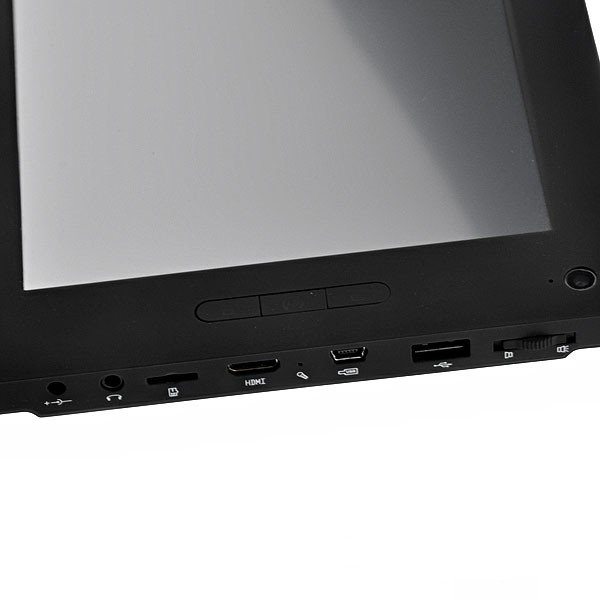
USB2.0, mini usb2.0. Headphone *1, MIC*1, DC JACK*1, TF card reader *1 HDMI port * 1
Camera
1.3 Mega Pixel
G-sensor
Support
Speaker
Built in speaker
HDMI out
Yes

2.Multimedia/Software Applications
Android Market
Support
Software
NotePad, Alarm Clock, Permanent Calendar,MSN, Skype, Gtalk, QQ, Weather Inquire,WEB Browser, E-mail,Net Clock, Weather on line,Google Search, Google Market,Google Soft Keyboard,Google Satellitic Map, Word, Excel, PPT, PDF etc(You can download from Android Market)
Audio
support MP3;WMA;WAV;AAC and so on.
Video
Hardware decoder 720p 1080p , support MP4,AVI,ASF,WMV,RM, and achievable full screen play
Picture
bmp,gif,jpg,png
Ebook
Pdf,Txt,chm,doc,(depend on software )and download more
Office
word, ppt, excel and so on
Communication
MSN QQ Skype Gtalk Gmail and so on as you like.
Game
Support 3D/G-sensor games
Available languages
simplified chinese,traditional chinese ,english,italian,german French,spanish,greek,portugal,and more.

3.Appearance/package/battery.etc  
Appearance
As show in pictures
Dimension
210* 162 * 14.5 (L*W*H)mm
Weight
500g
Available colors
Black
Packed weight
1.0KG
Standard Configuration
1 x charger / earphone / usbdate cable
Movie/Wifi time
About 5 hours
Battery
4000mah+ High capacity Li-ion battery
Standby Time
24hours


14.jpg
6.jpg
18.jpg5.jpg

Thursday, September 1, 2011

Apply Screen Protector Without Air Bubbles

The first thing you should do is clean the screen. Preferably using a real microfiber cloth designed for this kind of use and not a kitchen towl or toilet paper. Just make sure there’s nothing wet or sticky on the cloth, and even more importantly; nothing that will scratch the screen. Make sure you clean the entire screen carefully, and make sure you have a lot of light when doing so. You’d be surprised how clean and perfect a dirty screen looks in bad lighting. You can even use a flashlight when cleaning the screens, as that will really show you all the dirt you have to get rid of.
Next you have to make sure there’s no large particles on the screen. Large dust bits, hair and similar objects will make the screen protector bulge slightly and create air bubbles that no amount of squeegeeing will fix. Your best friend for this step is a can of aerosol dust remover which you can normally get in computer stores. This will let you blow away any leftover particles without any direct human interaction- dust often comes from humans after all.
When it’s time to apply the protector, be quick but careful so that you don’t get more dust particles on the screen while fiddling with the protector. No matter what you do, don’t remove the entire protective sheet from the screen protector before applying it, and do the whole thing upside down. that is, find the side normally market “1″ and pull off a few centimeters of the protective sheet while holding the screen protector with the 1-side facing down. That way, no dust will settle on the screen protector while you’re moving it around. Roll the protective sheet down alongside the screen protector so that you can hold both the screen protector and the end of the protective sheet in one hand and control both. Align the exposed end of the protector with the screen and make sure you have it perfectly aligned in all directions before pressing down. You should now have part of the screen protector on the screen while the rest is still protected by the protective sheet which is rolled between the screen protector and the screen.
The key to applying a screen protector is to roll it on, not lay it on. Air bubbles form because air is trapped between two parts of the screen protector that is in contact with the screen, sealing in the air. To avoid this you have to apply the screen protector only a few millimeters at a time. Bend the part of the screen protector that isn’t applied yet upwards about 45 degrees to create a curve where the loose part meets the applied part (but don’t fold it!) and then push the loose end of the screen protector down so the curved part “rolls” the screen protector on the screen. While doing this you also pull on the protective sheet to expose the screen protector as you go. This way you don’t have to deal with a giant sheet of exposed screen protector.
When you’ve successfully rolled the entire screen protector onto the screen, remove the second protective sheet. Use the same rolling motion as with the screen protector or you’ll end up creating air bubbles because you lift the screen protector up as you remove the protective sheet. Finally, use a squeegee (normally included with the protector) to smooth out any air bubbles that still made it in there. Using this method you can apply screen protectors much larger (and more successfully) than when using the “slap it on, see what happens” method that certain friends of mine seem to be fond of and if all goes right you shouldn’t notice that there is a screen protector there when you’re done. Good luck!

Credits on this article goes to Andreas ØdegÃ¥rd from nothingbuttablets.com

Wednesday, August 31, 2011

Ebook Tablet Revolution

Remember back to the year 1990, when the gallon of gas cost $1.34? That was nearly 2 decades ago when John Galuskza, the founder of Serendipity Systems created the very first eBook display program called the PC-Book. His software pioneered the ebook development and distribution. Much has changed and grown over the 20 years, including the gas prices and the eBooks sales. In 2010 a staggering 13 billion ebooks were sold, based on figures provided by the AAP Publishers. The numbers are projected to grow in the subsequent years as book manufacturers begin to capture the magnitude of consumer demand for ebooks. With that being said, users switching to etext will want to own device that not only allows etext reading but enhances its overall experience. Tablet is the device to have when it comes to textbooks not only because of its portability but functionality and physical characteristics. According to the study ‘Connected Devices and Mobile Advertising’ conducted by Nielsen Company that interviewed over 5000 people, the majority of tablet users are males, under the age of 35. The study further found that the primary usage for a tablet is education and entertainment. It includes activities such as reading books, news, watching movies, and video clips. Considering that we can full-heartedly infer that e-textbook sales will be affected by the growing tablet market in the near future. CourseSmart, one of the largest eTextbook retailers, reported a 400% increase in 2009 etextbook sales. The astounding quadruple growth opens the eyes wide of other textbook publishers and distributors to realize just how fast the trend is storming up. Barnes and Noble is staying afloat with the eBooks wave and offers a large number of textbooks in a digital format. Kno is another etext distributor, with a large selection and very user-friendly interface, fast page flipping, and so far cheapest one out of the three. It has one major disadvantage, however, compatibility with Anroid tablets. With the emergence of newest Android tablets from various manufacturers consumers are choosing Android for its great functionality and price. Compatibility of a program with Android can make or break the deal in deciding to purchase it. Currently, Kno is compatible with PC or an iPad. Reading a book on PC can be frustrating since the book is in a portrait format while the screen of a PC laptop is in a landscape format. Users would have to constantly scroll down the page to continue reading. That can get tiring after a couple of hours. Tablet or an iPad is the most ideal device for reading etextbooks. It is crucial for etextbook providers to realize just how huge the Android market is growing and to satisfy that demand by creating an interface that is compatible not only with PC but also Apple and Android. 

Sunday, August 28, 2011

Problem Fixed: External Case Keyboard Shift Keys Do Not Work on your Flytouch 3 Tablet


Some users of Flytouch have reported issues with shift keys on External Case Keyboard they purchase along with it. The numbers would not work and letters would not capitalize upon pressing the shift key on the keyboard. This issue is not due to the keyboard defect but rather the compatibility of that specific keyboard with your device. If the shift key doesn't work on your flytouch external keyboard there is a simple fix you can implement within 2 minutes of time and completely FREE:
  1. Go to Anroid Market and install the SwiftKey Keyboard.
  2. Go to  "Settings -> Language & Keyboard" and select the SwiftKey check mark. 
  3. Open up any text field on your tablet and long-press that text field. 
  4. Select "Input Method" -> "Swift Key Keyboard
That's it! 


Tuesday, August 2, 2011

Latest Flytouch 3 Firmware

Procedure:
  1. Download the firmware & save to micro SD card
  2. While the tablet is off insert the micro SD card
  3. Turn it on and wait for it to update
  4. Status on the screen will show the progress
  5. Once done updating the tablet will automatically shut down
  6. Remove the SD card & turn it back on!
  7. You are done!
Flytouch Firmware, credit goes to developer Tim. To download click:
http://www.4shared.com/file/UdbG-UiL/firmware-discovery.html
http://www.4shared.com/file/5NReQ1bq/firmware2.html

Monday, August 1, 2011

Before you do Hard Reset: Safe Mode on VIA WM8650


This simple procedure can resolve a lot of issues on the VIA WM8650 Tablet. When there are too many applications loaded on the tablet or there is just one problem application, the tablet may go into a force close loop. And no matter how many times the device is restarted all applications will keep closing. You may not be able to remove the 'problem app' without a hard reset which erases all settings and downloads from the tablet. Fortunately, there is 'Android Safe Mode' which enables you to unistall the application causing issues without performing the 'hard reset'

  1. Power on the tablet
  2. Wait for Android Animation to finish
  3. When it says "Loading" press and hold the 'MENU' button
  4. As soon as the tablet begins vibrating release the 'MENU' button
  5. The tablet will vibrate once more before it turns on
  6. 'Safe Mode' should be displayed in the lower left of the screen

Factory Reset on Android Tablets

This is a very simple way to reset most Android devices back to factory settings. Although it may not work on every Android device, it should at least remove your gmail account from it.

SETTINGS -> PRIVACY SETTINGS -> FACTORY RESET

Wait a few minutes and you are done!

Sunday, July 31, 2011

Must Have Apps for Students

*Click on the icons to Download the Apps
*Download straight to your tablet using Dolphin Browser
PG Calculator is a powerful scientific calculator.
It works in Algebraic and RPN (Reverse Polish Notation) modes and allows to use the following mathematical functions: * Addition, subtraction, multiplication and division; * Power and roots; * Trigonometrical functions: sin, cos, tan; * natural and decimal logarithms; * hexadecimal, octal and binary number formats;
eTextbooks on your Android device. Carry your textbooks anywhere yo go!
Access the CourseSmart website using a custom-designed Android application. This free app is a perfect complement to a CourseSmart subscription. NOTE: This application requires an internet connect.
SAT Vocabulary - 4922 (!) words and definitions that will help you to prepare to the SAT test:
- mark learned or easy words and select 'Show unmarked' from menu;
- view words in alphabetical or random order;
- hide navigation buttons to eliminate distraction;
- last viewed word is saved when you leave the app
Evernote turns your Android device into an extension of your brain. Evernote is an easy-to-use, free app that helps you remember everything across all of the devices you use. Stay organized, save your ideas and improve productivity. Evernote lets you take notes, capture photos, create to-do lists, record voice reminders--and makes these notes completely searchable.
Cannot handle your daily finance? Expense Manager is here to help. It is great application for managing your expenses and incomes: • Tracking expenses and incomes by week, month and year as well as by categories Schedule the payments and recurring payments• Take a picture of receipt• Payment alerts• Budget• Search and reports• Import and export account activities• Customize expense categories, payer/payer, payment methods
Unit converter currency math measurement science education business travel

Powerful and fully featured Unit converter, Currency converter and Calculator.
ConvertPad is a simple but the most powerful unit converter. (More than 5,000,000 downloads). It's intuitive and easy to use. Features fast, real time currency and unit conversion in a clean interface


Download Essential Apps

Click on the icon to bing up an App Download Link

Share and stay connected with your friends with the Facebook for Android app. Facebook for Android makes it easy to stay connected and share with friends. 
The latest version of the official YouTube app! Experience the latest and best of YouTube experience.
Evernote turns your Android device into an extension of your brain. Evernote is an easy-to-use, free app that helps you remember everything across all of the devices you use. Stay organized, save your ideas and improve productivity. Evernote lets you take notes, capture photos, create to-do lists, record voice reminders--and makes these notes completely searchable.
Flash 10.1 Player. Bring the FULL web to your device with Flash Player- videos, games, apps & more Flash Player enables a complete web browsing experience
Get Google Maps with Directions, Places, Coordinates
Reading books in epub, fb2, txt, doc, rtf, html, chm, tcr, pdb, pml formats. eBook reader. Supports epub (non-DRM), fb2, doc, txt, rtf, html, chm, tcr, pdb, prc, mobi (non-DRM), pml formats.
Pages or scroll view. Page flipping animation.
Table of contents, bookmarks, text search. 
Bookmarks on comments or corrections for proof reading.
Use the unique powers of the Angry Birds to destroy the greedy pigs' fortresses!
The survival of the Angry Birds is at stake. Dish out revenge on the greedy pigs who stole their eggs. 
eBay Mobile 1.5.0.16 - the latest available version
- Selling on eBay is now supported. You can list, relist, revise, and mark your items as shipped. Contact the buyer straight from your tablet.
- View your own feedback ratings and recent comments from eBay members
Download Anti-Virus free today for better security and:
√ Scan apps, settings, files, and media in real time
√ Find/locate your lost or stolen phone via Google maps
√ Backup and restore all your valuable apps and data
√ Lock and wipe your device to protect your privacy
√ Kill tasks that slow your phone down, and browse the web securely

Thursday, July 28, 2011

Set Wi-Fi Sleep Policy to Never on Flytouch

A lot of Flytouch users have reported an issue with Wi-fi that turns off on its own after a period of time. There is actually a setting on the device that can be adjusted in order for it to keep from disconnecting. All you need to do is to set the wi-fi sleep policy to 'never'. Although this may drain some of the battery life, it will alleviate the headaches from wi-fi disconnecting. 
  1. Open 'SETTINGS' icon on the home screen
  2. Click 'Wireless & Networks'
  3. Click 'Wi-fi Settings'
  4. Hit 'MENU' button at the top of the tablet or the screen
  5. Once it's open go to 'ADVANCED'
  6. Click 'WiFi Sleep Policy'
  7. Select 'Never'

Play Power Point Presentations on Projector/TV

In order to play Power Point Presentations on the projector screen or TV using the Flytouch tablet you must  first convert the Power Point File to a video format such as MP4. Conversion software can be downloaded online free (example http://www.imtoo.com/convert-powerpoint-to-mp4.html). Once the Power Point presentation is converted to an MP4 format you may play in on your tablet and project it on the large screen. For steps on how to connect Flytouch tablet to the large screen TV or projector use this link: http://fapobee.blogspot.com/2011/07/how-to-connect-flytouch-to-tv-via-hdmi.html

Speaker volume is too low on Android tablet

Headphones volume is typically louder than the speaker volume. But because of the hardware/firmware on certain tablets there may be no way repair it. An easy fix if you desire additional speaker volume, is
to purchase a wireless speaker such as Macally Portable Stereo Speaker (under $10 on ebay). That will provide you with sound solution in a very portable format.

Flytouch Factory Reset

How to do factory reset on your Flytouch device:

  1. Power Down
  2. Hold Power + Menu + Back (big round button)
  3. Wait.
  4. Factory reset is completed

How to Connect Flytouch to the TV via HDMI

This will work for playing movies or presentations in MP4 format or YouTube videos using YouTube App:
SEE VIDEO BELOW:

  1. Connect the tablet to the TV via mini HDMI to HDMI and change the TV settings to the appropriate source
  2. Open the video app or YouTube app compatible with the video you are going to play
  3. Hit 'PLAY' button on the tablet screen
  4. Hold the 'MENU' button at the top of the tablet for 8 seconds
  5. The tablet screen should go black and picture will transfer to the big screen
  6. If sound only transfers but not the picture then your firmware may not be compatible. Contact at fapoelectronics@gmail.com to receive the latest firmware for this tablet

Download Ebook to Tablet


There are two ways to download an ebook to your tablet: via Laptop/Desktop PC or directly through tablet itself. Below is a list of sites with free ebooks:
www.epubbooks.com/
www.manybooks.net
www.ebookee.org
www.getfreeebooks.com/
www.pdfgeni.com/
www.ebookdirectory.com/
www.planetebook.com/

Download ebook using Laptop PC/Desktop
  1. Download an ebook to your computer
  2. Insert a micro SD card into Laptop/Desktop and copy the ebook file over to it
  3. Download an ebook app to your tablet from the android market (CoolReader, eReader, etc.)
  4. Insert the micro SD card into tablet
  5. Open the ebook app you downloaded and the book should pop up
  6. If it doesn't pop up go to 'File Manager' or 'My Pad' and locate files stored on the SD card
  7. Find the saved book file and open it
  8. Prompt screen will pop up to open the book using the ereader app on the tablet
  9. Enjoy reading!
Download ebook directly to the Tablet PC
  1. Download an ebook app to your tablet from the android market (CoolReader, eReader, etc.)
  2. Download Dolphin browser to your tablet from the android market (if not already installed)
  3. Insert the micro SD card into the tablet
  4. Open URL for the ebook websites using the Dolphin browser
  5. 'Download' the book (download status should appear at the top of the screen)
  6. Once download complete click on the status screen or go to 'File Manager' or 'My Pad' and locate the downloads folder
  7. Open the downloaded book
  8. Prompt screen will pop up to open the book using the ereader app on the tablet
  9. You are done!

 
Design by Free WordPress Themes | Bloggerized by Lasantha - Premium Blogger Themes | cheap international voip calls